HubSpot Marketing Hub helps print-on-demand businesses automate cart recovery, reorder reminders, and customer segmentation — all connected to your Shopify store and print provider in one CRM. This guide walks through exactly how to set it up.
If you’ve ever chased a proof approval at 11 p.m., or watched a customer disappear after promising to “order next week,” you already know how messy print-on-demand can get. Orders everywhere. Messages buried in email threads. “Where’s my shirt?” pings lighting up three platforms at once.
That’s where HubSpot comes in. Think of it as your marketing, sales, and sanity system rolled into one. It’s the one place where your store data, customer chats, and follow-ups finally talk to each other.
With HubSpot Marketing Hub, you can start running a process. Plug in your store (Shopify, WooCommerce, or wherever you sell). Connect your print provider (Printify or Printful). HubSpot pulls every customer interaction into one timeline, so you know exactly who bought, who bounced, and who’s due for a reorder.
Then you can get really creative, with automated cart-recovery emails that actually feel personal, reorder reminders that hit right on time, and AI-written messages that sound like you. Add Commerce Hub to turn quotes into instant payments, and Service Hub to keep your reprint requests organized.
After that, it’s simple: you focus on designs, HubSpot handles the details.
Why HubSpot Works for Print-on-Demand
If you’re in print-on-demand, you already know what death by admin looks like. Proof approvals buried in Gmail. Customer messages scattered across chat apps. “Ready to reorder” buyers you never quite follow up with.
Most sellers outgrow the Shopify dashboard faster than they expect. You get sales, sure, but not systems. And without systems, repeat orders slip through the cracks.
That’s why print-on-demand stores need CRM software that does more than just hold names, it has to manage conversations, track deals, and run marketing that feels human. That’s exactly what HubSpot was built for.
HubSpot’s beauty is in how it connects everything. Here’s how each piece fits into a POD workflow:
- HubSpot CRM gives you the full customer story: first click, last purchase, and every conversation in between
- Marketing Hub automates your follow-ups from cart recovery to “your reorder’s ready” nudges
- Sales Hub handles quotes, bulk pricing, and payment tracking, so no one’s chasing invoices.
- Service Hub logs support tickets, damaged-item requests, and reprint claims without flooding your inbox
- Commerce Hub connects directly to Stripe or HubSpot Payments, meaning you can send quotes that double as checkout links
- Data Hub keeps everything synced across Shopify, WooCommerce, and Printify.
- AI Agents, Breeze, Content, Customer, and Prospecting, handle the repetitive marketing grunt work for you
Key Marketing Tools to Master
The real wins come when you start using HubSpot’s marketing tools like a daily workflow, not a one-off setup.
- Email & Automation: Start with your cart recovery flow. Two emails, about 24 hours apart
- Keep it simple, personal, and human. Then build a reorder automation, about 60 days after a purchase, send a reminder with a one-click reorder link
- Smart Content: You can personalize every email by product. If a customer ordered mugs last time, offer them a matching hoodie. That micro-personalization is what lifts reorder rates
- Forms & Pop-ups: Build simple “save 10% on your first print” pop-ups and sync them straight to your CRM. That list will feed every automation later
- Social Scheduling: Use the Hashtag Bank to plan your next product drop. HubSpot now stores your high-performing hashtags, saving hours when you’re scheduling campaigns
- AI Content Assistant: Let the AI draft your first email or Instagram caption. You’ll still edit for tone, but in my experience, it dramatically reduces the time spent on first drafts
- Visual Workspaces: In the 2025 Marketing Studio, you can finally see everything: email, ads, automations, and deals in one timeline
How to Use HubSpot for Print-on-Demand Success
HubSpot can feel like a lot at first. A dozen buttons, a clean dashboard, and the quiet voice in your head going, don’t break anything. But once you get past that first five minutes, the whole system starts to click. Here’s how to get from “I have no idea what I’m doing” to “my entire workflow just ran itself while I was asleep.”
Step 1: Create Your Free HubSpot Account
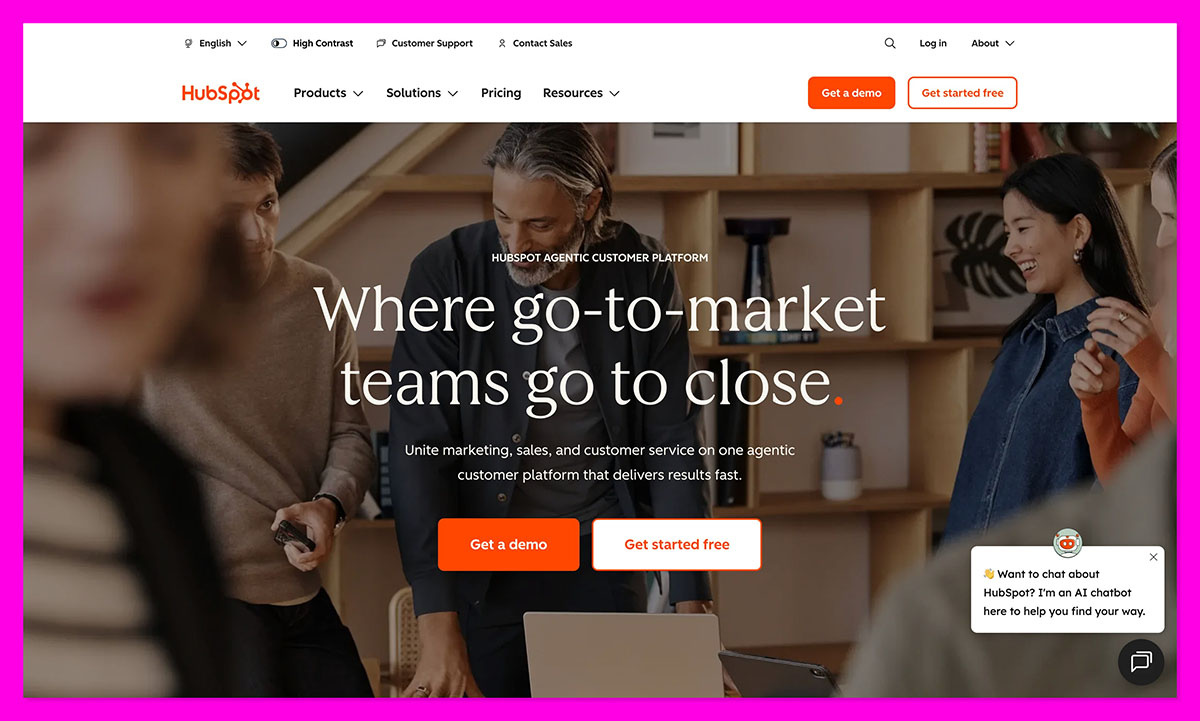
Head over to HubSpot CRM Free. Set up your workspace, give it a name that actually makes sense (something like “POD HQ,” not “Marketing Test 7”), and start adding your team.
Then, personalize it:
- Change your deal pipeline to match your actual flow: Order Placed → Artwork Proof → Fulfilled → Reorder Opportunity
- Flip on GDPR tracking so HubSpot quietly handles all that consent paperwork you’d rather avoid
- Add your own email and make a fake test order. Watching how HubSpot tracks every move in real time is the fastest crash course you’ll ever get
Don’t overthink the settings. You can clean things up later. The goal right now is just to see data flowing.
Step 2: Connect Your Store & Print Tools
Next, plug your store into HubSpot. Shopify, WooCommerce, Etsy, or whatever your main channel is. It’s just a few clicks inside the App Marketplace.
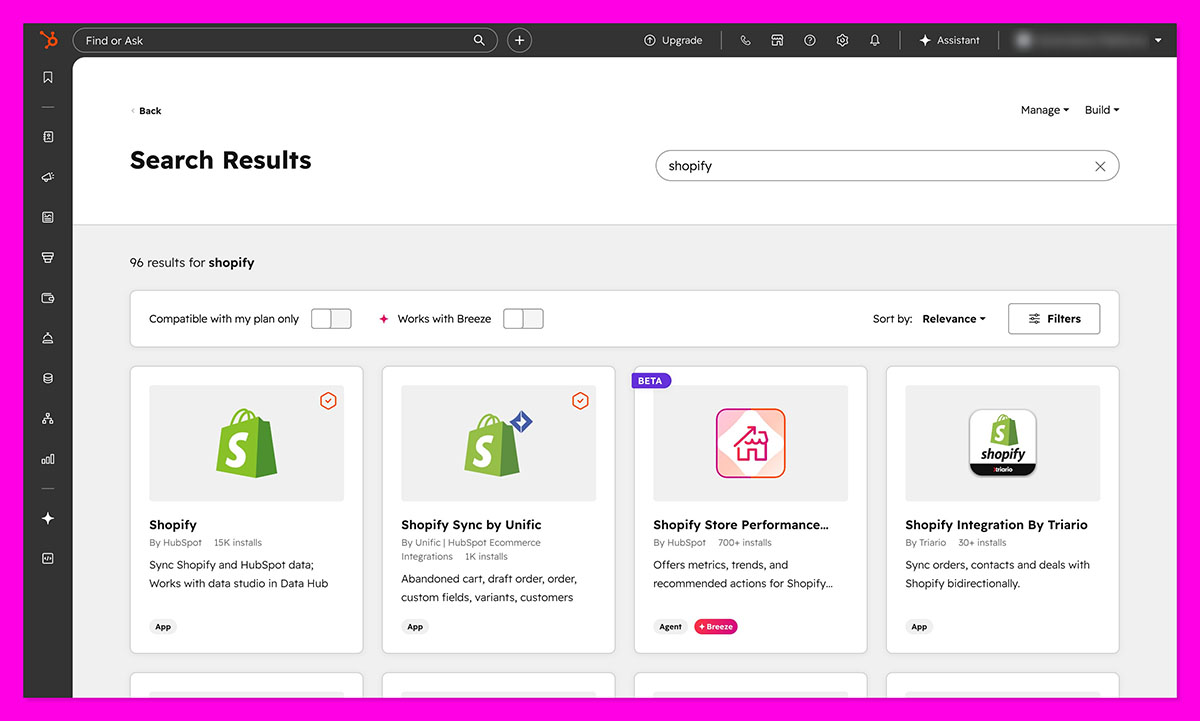
Now link your print provider like Printful or Printify using Pipedream or Zapier. Run a test order. Watch as HubSpot instantly creates a new contact, a deal in your pipeline, and logs the payment in Commerce Hub. It’s a strangely satisfying moment.
Once that’s done, enable HubSpot Payments or Stripe (depending on your region). That connection is what lets you send a quote and get paid right inside your CRM instead of chasing invoices through email threads.
Step 3: Turn On the Core Marketing Hub Tools
Time to switch on the marketing engine. Inside Marketing Hub, activate:
- Email Marketing
- Workflows
- Forms
These are your bread and butter. Use the AI Assistant to draft your first welcome message and cart-recovery email. Don’t worry if it sounds stiff, tweak the tone until it feels like you.
If you’ve got access to the 2025 Marketing Studio Workspaces, check it out. It’s great at mapping your entire strategy out visually. Once you see how everything connects, you’ll wonder how you survived without it.
Step 4: Automate the Essentials
Start with three workflows:
- Cart Recovery: two emails: one after 2 hours, another after 24
- Keep it personal. “Hey, your custom hoodie’s still in the queue”
- Post-Purchase Upsell: 7 days later, show them a matching product or bundle
- Reorder Reminder: after 60 days, nudge them gently with a reorder link
Add personalization tokens (name, last product ordered). Then use Breeze AI to test subject lines and send times. It’ll quietly find what works while you focus on the next launch.
Pro tip: Never automate what you haven’t tested manually once. Send it to yourself first.
Step 5: Segment & Personalize
Build Smart Lists for:
- First-time buyers
- Repeat customers
- Big spenders (average order value above your threshold)
Then turn on Predictive Lead Scoring through HubSpot Data Hub. It’ll show you who’s most likely to reorder before they even open your next email. Now layer in Smart Content rules: mugs get mug promos, hoodie buyers see hoodies, and so on.
Step 6: Track and Optimize
Open Reporting → Dashboards and create one called POD Performance. Add widgets for:
- Cart Recovery Rate
- Repeat Purchase Rate
- Email Clicks
The 2025 drag-and-drop dashboard builder makes this part easy; you can literally rearrange metrics like sticky notes.
Check it weekly. Patterns start to emerge. Maybe your cart recovery drops mid-month, or your reorder emails hit better on weekends. That’s the data telling you what to fix.
Advanced HubSpot Strategies for POD Growth
Once your automations are working and dashboards look decent, you’ll hit that next question: how do I make this thing work harder? HubSpot’s 2025 updates opened the floodgates: AI agents, predictive analytics, even object-level automation for designers and vendors. Here’s how to take advantage of all that without losing the human touch that keeps customers coming back.
Personalized Product Launches
You know that moment when you drop a new design and watch traffic spike, but only a handful of old buyers actually click “buy again”?
That’s where Smart Rules and the AI Content Agent come in.
Set up a launch email that changes based on what the customer bought before. If they ordered a “Stay Weird” hoodie, their version of the email leads with your new T-shirt in the same vibe.
HubSpot’s AI can now draft variations automatically: subject lines, product angles, even emojis, then run A/B tests behind the scenes. You still approve everything, but you no longer need to clone 12 emails by hand.
Lookalike & Retargeting Campaigns
Once your contacts are tagged and segmented, let HubSpot feed the ad platforms. Sync your Smart Lists straight to Meta and Google through HubSpot Ads. Create lookalike audiences from your best customers: the ones who reorder, not the ones who just browse.
This trick turns your paid ads from “spray and pray” into laser targeting. Your Meta campaign starts showing your products to people who actually behave like your top 10%. It’s like cloning your best buyers, ethically.
Add a simple retargeting rule: anyone who clicked a link but didn’t order gets a second round with a discount or free shipping offer.
Custom Objects for Designers & Suppliers
With the 2025 Visual Data Model Builder, you can create custom objects, which are basically new record types inside your CRM. Use them for:
- Design Files: track artwork status, approval date, and assigned designer.
- Vendors: log pricing, turnaround times, and communication history.
So when a supplier delays a shipment or a designer misses a deadline, you don’t need to dig through Slack. It’s all tied to the order pipeline.
Once you’ve mapped it out, build automation rules: If “Design File = Approved,” automatically move the deal to Production and trigger a “Thank You + Reorder Coupon” email to the client.
AI Forecasting for Seasonal Demand
POD runs on trends, and trends run on timing. HubSpot’s Data Hub now includes predictive analytics, which helps you anticipate demand before it spikes.
Here’s how to use it:
- Pull your past six months of sales data into HubSpot
- Tag each campaign with its theme or season
- Let AI model which collections tend to rise together (e.g., Valentine’s and spring florals)
The system spits out timing insights, basically saying, “launch beach designs in late April, not mid-May.” You can also forecast reorder probability, which helps you budget ad spend more confidently.
Commerce Automation: From Quote to Payment
If you’ve ever lost a sale because the buyer had to “check with their boss,” you’ll love Commerce Hub.
Use it to create quotes that double as checkout links. Send them through email, track when they’re opened, and close the sale right there. HubSpot logs every step in the deal record so your sales team (even if it’s just you) knows exactly what’s pending.
Add a payment reminder workflow: if a quote sits untouched for three days, HubSpot automatically nudges them with a friendly follow-up. When the payment lands trigger a “Welcome to Production” email that sets expectations and keeps communication clean.
Keep Your HubSpot System Running Smoothly
If you’ve made it this far, congratulations, you’ve built the engine. But even the best-built engines need oil changes. HubSpot can run for months without you touching it, sure, but if you want it to stay fast, clean, and profitable, you’ve got to give it a little regular love.
Weekly: Tune the Machine
Check your workflows:
- Make sure none of them are “paused” or throwing red error flags (it happens more than you think)
- Merge duplicate contacts: HubSpot’s Merge Suggestions tool is a lifesaver when customers use three different emails
- Review your most recent automation metrics. If a cart-recovery email has a 12% open rate, it’s not “bad luck,” it’s a subject-line problem
Monthly: Check Your Pulse
Once a month, spend 45 minutes looking at three dashboards:
- Cart Recovery: Is it trending up, flat, or sliding?
- Revenue by Channel: Which channels are actually converting?
- Email Engagement: Who’s ghosting you? Who’s still clicking?
This is where you spot early warning signs before they snowball. It also gives you a chance to prune your contact lists. Drop the disengaged ones or run a re-engagement sequence. Cleaner data = cheaper send costs and sharper insights.
Quarterly: Level-Up and Refresh
Every quarter, do a little spring cleaning.
- Review your automations. Anything still relevant? Anything outdated? Update copy to match new branding or product lines
- Test one new feature HubSpot added since your last login (there’s always something new). Bookmark [hubspot.com/new] to stay current
- Back up your custom reports and dashboards. It takes five minutes and saves hours if something goes sideways
- Run a mini audit: Are your AI Agents still producing good suggestions, or are they recycling the same subject lines? Fine-tune them
How HubSpot Powers Long-Term POD Growth
There’s a moment in every print-on-demand journey when you realize you’re not chasing orders anymore, they’re chasing you. That’s when HubSpot starts feeling like your growth partner.
When I first set mine up, I thought I was just automating follow-ups. What actually happened was way bigger: HubSpot started showing me why customers came back, when they drifted off, and what made them buy again. That kind of visibility changes how you build everything, designs, campaigns, and even pricing.
That’s the long game. It’s not about working harder. It’s about building a marketing rhythm so tight it hums quietly in the background while you design, test, or take a weekend off.
If you’re serious about scaling print-on-demand beyond the next sale, start with a free HubSpot CRM account. Connect your store, build your first automation, and watch the system start paying for itself.
FAQs
Can I sell directly through HubSpot?
Yes, and it’s actually pretty easy. With Commerce Hub, you can send a quote that works like a checkout page. They click, pay, and it’s logged in your CRM. No back-and-forth, no “did you get my invoice?” messages. It feels like skipping a whole step in the sales process.
Does HubSpot play nice with Shopify and Printify?
It does. Shopify plugs straight in, no extra hoops. Printify (or Printful) connects through Pipedream or Zapier. Once it’s live, every order and customer detail flows into HubSpot automatically.
How do I make my campaigns feel personal?
The trick is Smart Content and dynamic lists. You set the rules once: “if they bought a mug, show them matching coasters”, and HubSpot handles the logic. People respond because it feels like you remembered them, not because you stalked them.
Is HubSpot actually free?
The CRM core is. You can store contacts, track deals, and send basic emails forever without paying a dime. When you’re ready for the serious stuff like automations, payments, and AI tools, that’s when you add Marketing Hub, Sales Hub, or Commerce Hub.
What’s HubSpot really best at for print-on-demand?
Connecting dots. It takes every order, email, and chat, and lays it out like a story. You can see who bought what, when they opened your last email, and whether they’re due for another round. Once you’ve seen that kind of clarity, you won’t ever go back to guessing.